
Portal & Admin Login Troubleshooting
In some cases you may experience an infinite redirect loop after logging into your WebinOne Portal or the Admin area for any WebinOne site.
This is due to some complexities in how cookies are managed in different browsers and the various settings that can be in place.
If you are experiencing such issues, below are some steps which should resolve the problem for you.
Browser Cookie Settings
Check that your browser settings are the same as follows:
Safari (Mac)
- Go to the “Safari” system bar menu.
- Select “Preferences”.
- Click “Privacy” in the top panel.
- Under ‘Block cookies’ select the option “Never”.
Safari (iPhone/iPad iOS 11)
- Open your “Settings”.
- Scroll down and select “Safari”.
- Under “Privacy & Security”, turn off “Prevent Cross-Site Tracking” and “Block All Cookies”.
Safari (iPhone/iPad iOS 10)
- Open your “Settings”.
- Scroll down and select “Safari”.
- Under “Privacy & Security”, select “Block Cookies” and “Always Allow” or “Allow from Websites I Visit”.
Chrome
- Paste the following address to the browser address bar:
chrome://settings/cookies - Under 'General settings', make sure either "Allow all cookies" or "Block third-party cookies in incognito" are selected:
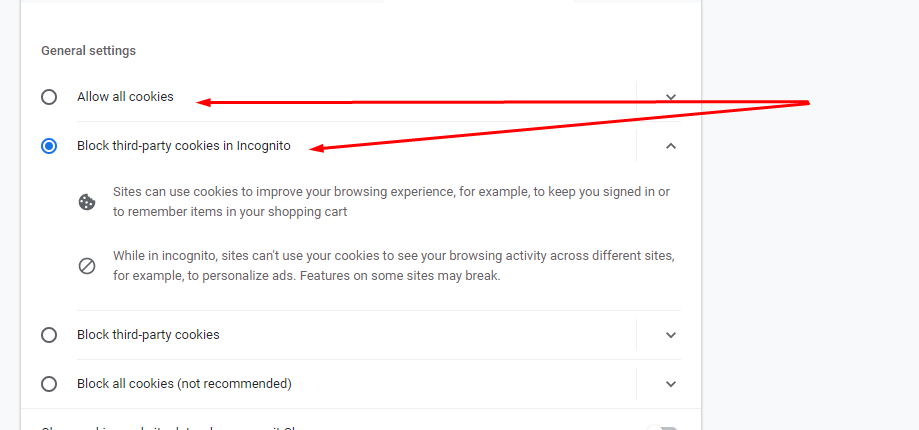
In case you have Block third-party cookies in Incognito checked means that you will have infinite redirect loop in incognito mode however you still will have no such issues in general browsing mode.
If you want to login to WebinOne in incognito mode please choose Allow all cookies option
Clearing Login Cookies
If you have set up your browser using the above guide and are still experiencing the infinite redirect loop then follow the steps below to clear/reset the necessary cookies.
Chrome
- Go to https://systemaccess.co/
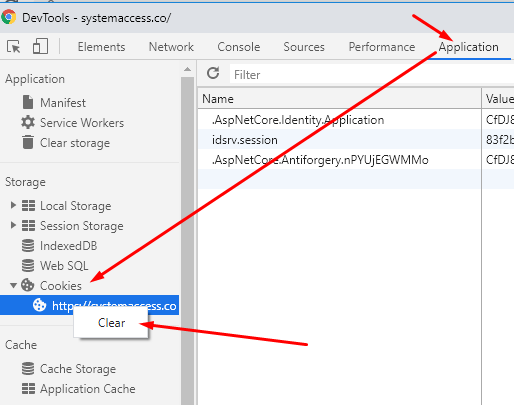
- Right-click on the page area and select “Inspect” (alternatively you can access the Inspect tool by pressing “F12”).
- Go to the “Application” tab.
- Open the dropdown labelled “Cookies”.
- Right-click on the
https://systemaccess.co/entry. - Click “Clear” then try going to the Portal (or WebinOne site admin) to log in again.
Safari
- Go to https://systemaccess.co/
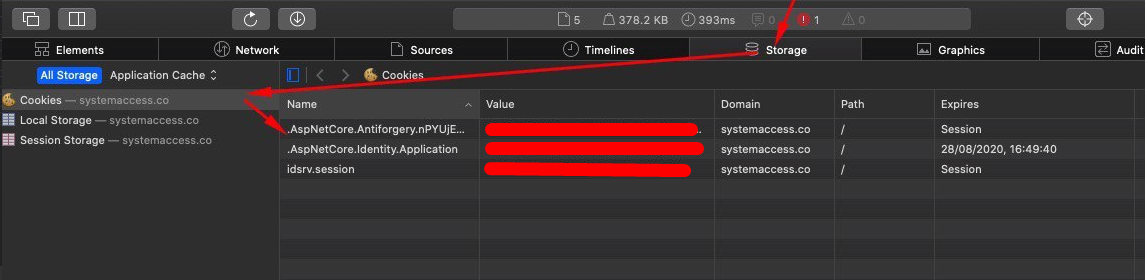
- Right-click on the page area and select “Inspect Element” (alternatively you can access the Inspect tool by pressing “Option Command I”).
- Go to the “Storage” tab.
- Click on the menu item labelled “Cookies”.
- Then click on each cookie and press the “Delete” button in order to erase all cookies. Then try going to the Portal (or WebinOne site admin) to log in again.
Check System Time
Check that your device system date/time is correct. The Single Sign On (SSO) token can become expired and not renew if there is a mismatch from the reported device time.
Related Articles
- WebinOne Portal
Trial Sites
Trial Sites are your WebinOne development environments for starting new site projects, before you publish to a custom domain name. - WebinOne Portal
Live Sites
Live sites are your published WebinOne instances that have been activated, have commenced a billing subscription and/or have a custom domain name assigned to them. - WebinOne Portal
My Settings
This section provides access to various Partner related settings and information for your account and site management, such as branding, commissions, portal users, and more. - WebinOne Portal
My Invoices
All WebinOne site plan invoices (including past and deleted sites) will be listed here for your reference with the ability to download a copy of the invoice or have one emailed to your reseller email address. - WebinOne Portal
TeamOne
A dashboard for your WebinOne TeamOne projects directly in your reseller portal along with information on TeamOne offerings and pricing. - WebinOne Portal
Support
WebinOne Support Support Tickets Support Ticketing is fully integrated with your WebinOne Portal and is... - WebinOne Portal
WebinOne Hosted Email
Managing Hosted Email Accounts with WebinOne Hosted email accounts can be managed via your WebinOne... - WebinOne Portal
Trial Site Activation (Going Live)
Site activation (aka going live) is done once your site is ready to go public or if you need to have a custom domain name to finish your testing. - WebinOne Portal
Two-Factor Authentication (2FA)
WebinOne provides the option of enabling Two-Factor Authentication for your Partner level access as well as for admin users on a per-site basis. - Website Templates
*Bikes - Website Templates
*Clothing Store - Website Templates
Coffee - Website Templates
*Coworking - Website Templates
Digital Agency - Extensions
Direct Billing
Allow your customer to pay WebinOne directly for their site plan from the admin, as well as activating the site and assign their primary domain name (if the site is still in Trial Site mode). - Website Templates
Furniture - Website Templates
*Hair Salon - Website Templates
Max - Tutorials
v6 to v7 Site Upgrade Guide
Upgrading a version 6 site to version 7 requires a few key steps to ensure that both your site features and pricing are optimal, and this guide will help you understand and complete the process.
External Resources
There are currently no external resources available.
Please let us know if you have any other contributions or know of any helpful resources you'd like to see added here.
Questions?
We are always happy to help with any questions you may have.
Visit the Treepl Forum for community support and to search previously asked questions or send us a message at support@webinone.com and we will consult you as soon as possible.